
Widget
TGK Spotify — Player & Library
Widget for the Xenon dashboard, by The.GothamKnight
Control Spotify playback, browse your library, search music, manage the queue and switch devices. Connect Spotify through Xenon first. Some playback features require Spotify Premium and an active device. Follows your Xenon theme and can be customized like other widgets. If no device is active, start
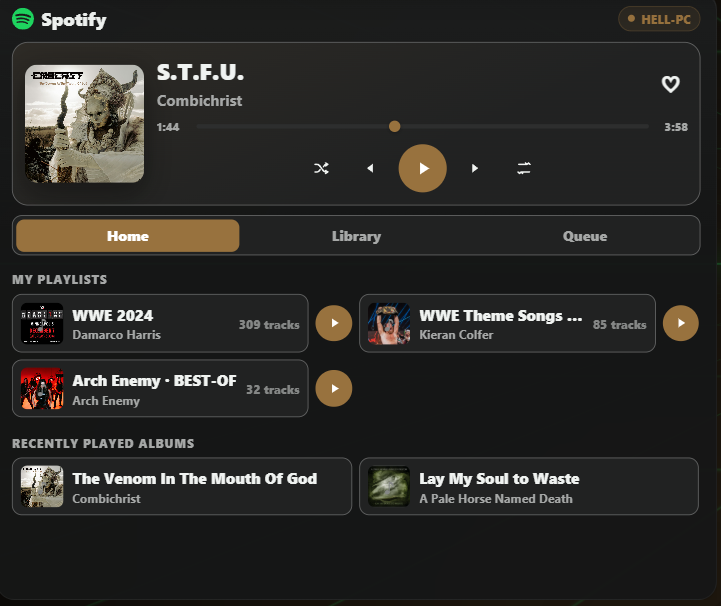
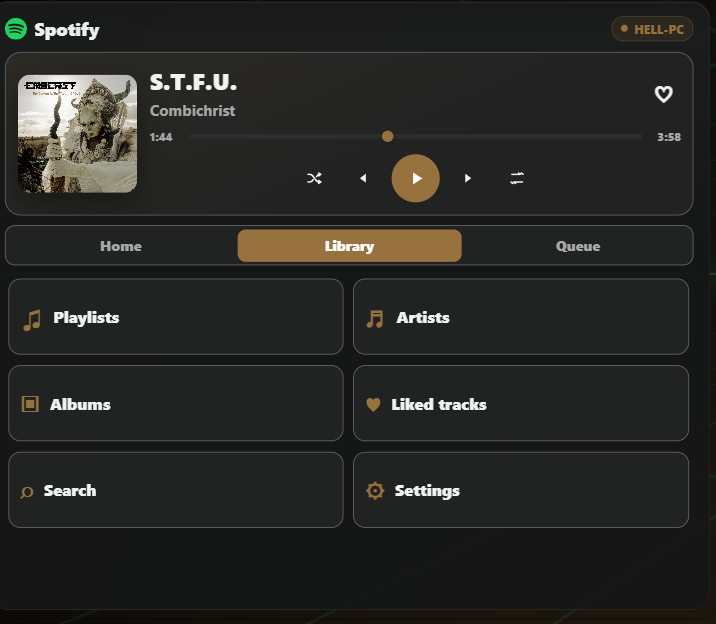
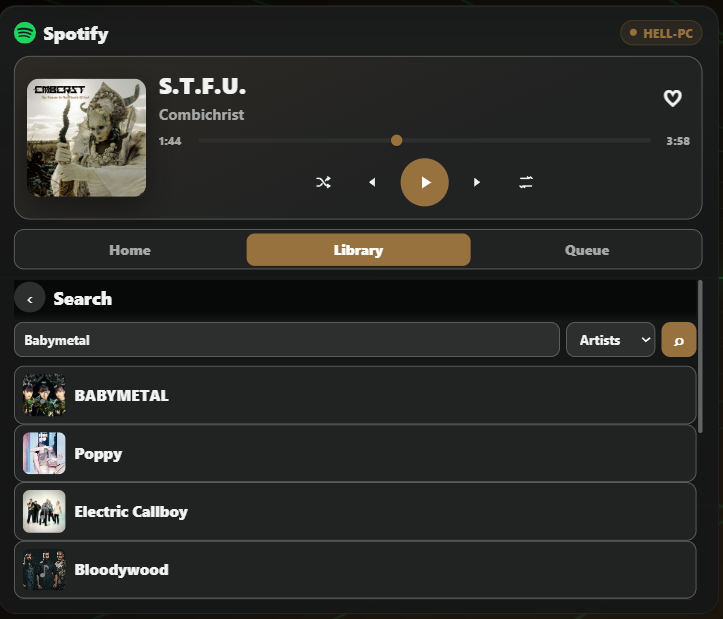
What a widget does
A widget is a tile that lives on your dashboard grid. It runs sandboxed, with no network access unless its manifest asks for named hosts and you approve them at install.
Palette
#1ed760#0b0d12#e9edf6
Tags
Free. Copy the share code, then paste it into Xenon under Settings → Widgets & sharing → Import. Everything stays on your machine.
How to install it
- Open TGK Spotify — Player & Library in the catalog and press Copy code.
- In Xenon, open Settings → Widgets & sharing → Import and paste the code.
- Xenon shows you what the code contains before anything is applied. Confirm, and TGK Spotify — Player & Library is on your dashboard.
- This one needs Xenon 4.1.8 or later. An older install refuses the code rather than importing half of it.
At a glance
- TypeWidget
- CategoryMedia
- Made byThe.GothamKnight (supporter)
- Versionv1.0.0
- NeedsXenon 4.1.8 or later
- Runs onWindows, macOS and Linux, on a second monitor, a Xeneon Edge, a tablet or a paired phone
- PriceFree
- Added2026-09-16