
The Deck
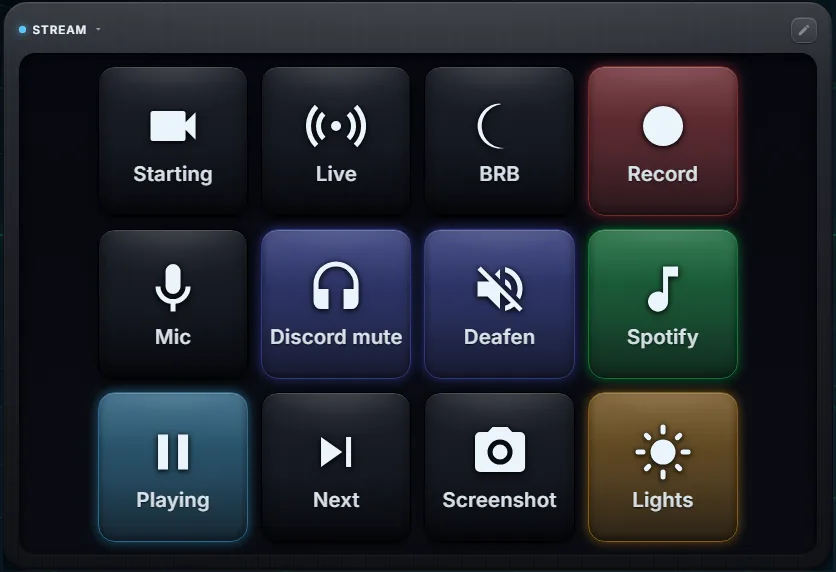
The Deck is a grid of keys you add to a Xenon dashboard page. A tap can open an app, send a keyboard shortcut, switch an OBS scene or mute Discord, and a key can light up to show the state of what it controls.
It does a similar job to a Stream Deck, on a screen you already own: a Xeneon Edge, a spare monitor, a tablet or a phone.
Last updated: 27 September 2026
Actions
The key editor sorts actions into categories. An action that acts on the PC is checked by the Xenon server against the list of actions it allows before it runs. A key that fails flashes red, and when the PC reports an error, a short message names it.
Categories that need another app or an account, such as OBS, Discord or Home Assistant, stay locked with a hint until you connect them in Settings.
- Apps, files and links. Open an app, a file or folder, a web address or a Microsoft Store app, launch a Steam game by its AppID, run a script, or lock the PC.
- Keyboard. Send a shortcut such as Ctrl+Shift+M, or type a saved piece of text. On Windows, Xenon first brings back the app you were using, so the keys land there.
- Webhooks. Call any http or https address with GET or POST, with an optional JSON body.
- Audio and media. Play, pause and skip tracks, mute the mic, set, raise, lower or mute the volume, set or mute one app, open the per-app mixer, pick an output device or flip between two on one key.
- Soundboard. Play, toggle or stop a clip from your sound library, each at its own volume, plus a key that stops every sound at once.
- Timers. Start a named countdown or a stopwatch, pause or resume it, or cancel it. These are the same timers the Timers tile shows.
- OBS. Switch to a scene or to the next one, start or stop recording and streaming, mute a source or set its volume.
- Twitch and YouTube. Create a clip or a marker, run an ad, change the stream title or category, send a chat message or a shoutout, change the chat mode, start or stop a YouTube broadcast.
- Streamer.bot. Run one of your actions, send a chat message on Twitch, YouTube, Kick or Trovo, or fire a code trigger.
- Discord. Mute, deafen, switch between push-to-talk and voice activity, join or leave a voice channel, set the mic or output volume, turn noise suppression or echo cancellation on and off, play a soundboard sound.
- Spotify. Play, pause, skip, like, save, shuffle, repeat, set the volume, seek, play a playlist or a Spotify link, or move playback to another device. Playback control needs Spotify Premium.
- Voicemeeter. Mute a strip or set its gain, send it to a bus (the A1, A2, B1 buttons), mute a bus or set its gain, press one of your macro buttons, or set any named parameter.
- Wave Link. Set or mute the volume of an input, an output or a mix. With Wave Link 2 a key can also switch monitoring; with Wave Link 3 it can turn effects on and off and pick the output device.
- Home Assistant. Toggle a device, set a light, control a media player, cover, climate, fan, vacuum, lock or alarm, activate a scene, run a script, press a button, or call any service.
- Lighting. Turn your lights on or off, set a colour or an effect, change one device, or hand them back to automatic. Razer Chroma devices and SignalRGB effects have their own keys.
- Windows. Move the window you were using to the next or previous monitor, snap it to the left or right half, maximize, minimize or center it.
- Xenon AI and Claude Code. Send the AI a prompt, start a voice session or open the chat. Start a Claude Code request in one of your projects, or stop the one running. The key grants no permissions: when Claude Code asks to run a command, the request comes to the screen for you to approve.
- More. Call or text through a phone paired over Bluetooth, end a remote session or block remote access, and use keys added by community widgets you installed, each one allowed by you first.
Multi-step keys
Each key has three gestures: tap, double tap, and press and hold for half a second. Each gesture can have its own actions.
A gesture can also run several actions in a row, with a pause of up to 10 seconds before each one. For example: mute the mic, wait a moment, then open an app.
Every step runs even if an earlier one fails. If any step fails, the key flashes red once the last step has run.
Keys that show a state
A key can follow a live state and light up while it is on. It can follow:
- Mic muted, speakers muted, and which audio output is in use
- OBS recording, OBS streaming, a chosen OBS scene on air, an OBS source muted
- Discord muted or deafened
- Music playing, Spotify playing, a timer running
- A Home Assistant device, a Streamer.bot global, or a value a community widget publishes
A key can also change its face while the state is on. In the key editor, Look while active sets a second icon, label and colour: a microphone that turns into a crossed-out microphone while muted, for example.
Any script on your PC can drive a key too. Bind the key to Reflect a script state, give the state a name, and end the script with one line: curl -X POST 127.0.0.1:3030/state/set -H "Content-Type: application/json" -d '{"name":"audio-out","value":"speakers"}'
The key changes as soon as the script runs. Web pages cannot send to that address, and neither can community widgets.
A key face can also show a live value: a timer counting down, CPU or GPU load, temperatures, fan speed, power draw, the battery of a wireless device, or a value from a community widget.
If Xenon drives your lighting, a key can also light your RGB when you press it, or for as long as its state is on.
Faders
A key can be a slider instead of a button. Pick Slider (touch fader) as the key type, choose vertical or horizontal, and drag it with your finger.
A slider can set the system volume, one app's volume (Windows and Linux), Spotify volume, an OBS input, Discord mic or output volume, or the brightness of a Home Assistant light.
For the system volume, Discord and Home Assistant lights, the slider moves by itself when the value changes somewhere else. The others stay where you last left them.
Profiles, pages and folders
A Deck holds profiles: separate sets of keys for streaming, work or gaming. Each profile has its own grid, up to eight columns and eight rows. You switch profile from the Deck's header, or by asking Xenon AI.
A profile can have several pages, with arrows and dots under the keys to move between them. A key can also be a folder that opens its own pages of keys.
Smart Profiles pair an app with a profile. When that app comes to the front, the Deck shows its profile; when you leave the app, the Deck goes back or stays, as you choose. A profile you pick by hand always wins.
You can put more than one Deck on your dashboard. Each one starts empty and keeps its own keys. To reuse a profile, open the profile menu of the new Deck and pick it under From another Deck.
On Windows, Open on the PC in the profile menu shows the same keys in a small window on your main monitor that stays above your other windows. You press keys there; editing stays on the dashboard.
Making a Deck
- Tap Layout in the top bar.
- Tap the + on the page, look in the Streaming group and pick Deck. Drag and resize the tile, then tap Done.
- Tap the pencil in the Deck's header. Empty slots show a +: tap one to open Edit key.
- Choose the type (Action, Folder or Slider), a title, an icon and a colour, then the actions for Tap, Double and Hold. Save.
- Tap the tick in the header to leave edit mode and use the keys.
With Auto on, the Deck shows as many square keys as fit the tile. In edit mode you can pick small, medium or large keys, or turn Auto off and set the columns and rows yourself. Your keys are never dropped when the grid changes.
You can also ask Xenon AI to set up a Deck for you, for example a streaming page with the keys to go with it.
macOS and Linux
Xenon on macOS and Linux is in beta. The key editor leaves out the actions your system cannot run, so you do not set up a key that only fails when you press it.
- On all three systems: opening apps, files and web addresses, running scripts, locking the PC, media keys, volume and mic, webhooks, timers, the soundboard, and the OBS, Streamer.bot, Discord, Spotify, Home Assistant, Twitch, YouTube and Claude Code keys.
- What counts as an app: an .exe, a shortcut or the app's install folder on Windows; an .app on macOS, where Xenon adds the extension Finder hides; a .desktop entry, an AppImage or a program on Linux.
- Scripts: .bat, .cmd, .ps1, Python and others on Windows, where a key can show or hide the script's window. On macOS and Linux: .sh, .zsh, .command, Python and others, plus AppleScript on macOS; the script runs in the background, with no window. The interpreter has to be installed.
- Keyboard shortcuts: on macOS they go through the Xenon Helper once you allow it under Accessibility; on Linux they need xdotool on X11 or ydotool on Wayland. On both, the shortcut goes to the app that is in front.
- Per-app volume and the app mixer: Windows and Linux. macOS gives Xenon no per-app mixer to control, so those actions are hidden there.
- Windows only: typing text, moving windows, Microsoft Store apps, Voicemeeter, phone calls and texts (beta), remote session keys and the Open on the PC window.
Sharing and importing profiles
Each profile has a Share button. It makes a code you can send as a link or as a .json file; a profile with pictures on its keys is shared as a file.
If some keys use community widgets, Xenon asks whether to put those widgets in the code. The person who imports it still reviews and approves each widget.
Importing a profile shows a review first: its name, how many keys it has, and which kinds of action it contains. Xenon rebuilds the profile through its own checks and drops anything it does not recognise. Nothing runs until you tap a key, and each action is checked again before it runs.
A profile you imported from someone else cannot be shared again from your PC. Profiles you made yourself always can.
Deck profiles are also in the community catalog, and you can submit your own. A person reviews every submission before it is listed.
Questions
Is the Deck free?
Yes. The Deck is part of Xenon, which is free for personal use, with no account and no trial.
Can a Deck key switch OBS scenes?
Yes. A key can switch to a named scene or to the next one, start or stop recording and streaming, and mute an OBS source or set its volume. Connect OBS in Settings, Streaming first.
Can one key do several things?
Yes. Tap, double tap and press and hold can each run their own list of actions in order, with a pause of up to 10 seconds before each step.
Does the Deck work on macOS and Linux?
Yes, in beta. Opening apps, files and web addresses, scripts, media, volume, OBS, Discord, Spotify, Home Assistant and the Twitch and YouTube keys work on all three systems. A few keys need Windows, such as typing text, moving windows and Voicemeeter, and the key editor does not offer them where they cannot work.
Can I use my phone as the Deck?
Yes, in beta. Pair a phone or tablet with your PC over your own Wi-Fi and it shows your whole dashboard, Deck included. Keys that act on the PC, such as opening an app or switching an OBS scene, run on the PC. Soundboard clips play on the phone.
Download Xenon
Xenon is free and needs no account. Download Xenon for Windows, or pick macOS or Linux (beta) on the download page.
To look around first, open the browser demo. The Deck editor works there, but a key cannot act on a PC, because there is no PC behind the page.