
Claude Code on a second screen
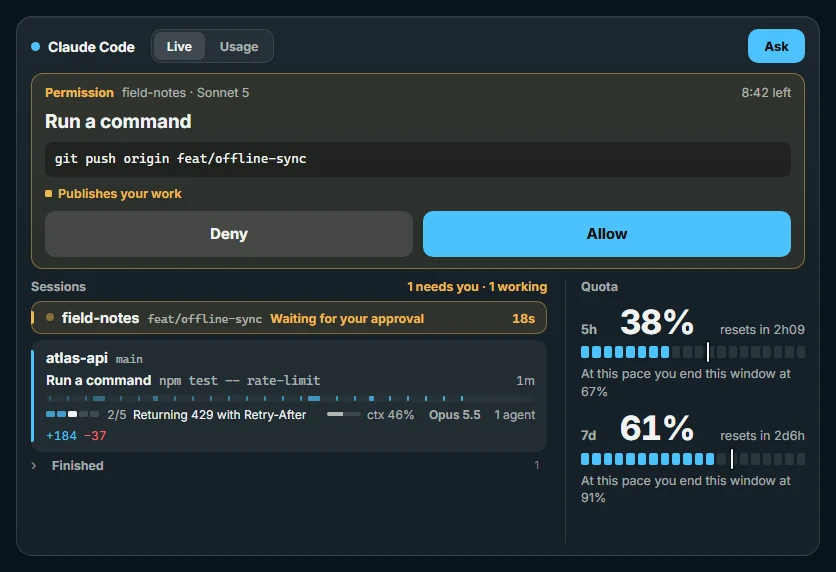
Xenon's Claude Code tile shows your real 5-hour and 7-day quota, what each session is doing, and every permission request with Allow and Deny. It lives on the screen next to your PC: a Xeneon Edge, a monitor, a tablet or a paired phone.
Last updated: 27 September 2026
Add the tile from the + button, under System. Token counts work straight away. The real quota, exact session state and approvals need Claude Code to be connected, which you do from the tile itself. It runs on Windows, and on macOS and Linux, which are in beta.
The 5-hour and 7-day quota
Claude Code hands its status line the real limits of your subscription: the 5-hour window and the 7-day window, each with how much is used and when it resets. Once Claude Code is connected, Xenon draws each window as a row of segments with a countdown to its reset.
A thin mark on each row shows where an even pace would be now, and the line under it says where the current pace ends: the share you would reach at the reset, or the time you would hit the limit. The figures turn amber at 70% and red at 90%.
The windows exist on Claude Pro and Max plans. An API key has none. On an API key, before you connect Claude Code, and after Xenon restarts until a session sends new figures, the tile shows a Weekly budget instead: a ceiling you pick (Pro, Max 5×, Max 20× or your own number) and this week's tokens measured against it.
The Usage side of the tile covers the last 30 days: today's tokens, the tokens since Monday, the total, the share read from cache, and what that work would have cost at API list prices, with a column for each day and a split by project and by model. These numbers come from Claude Code's own session files in ~/.claude, read on your PC, so they work before you connect anything. Claude Code deletes old session files after a while, and when fewer than 30 days are left the tile says from which date its figures start.
Live sessions and plans
With Claude Code connected, every Claude Code session on the PC gets a row: the project, the model, how full the context window is, and its state: working, waiting for you, or idle. Claude Code reports that state itself, so a row appears when a session starts, not a minute later.
A working session shows the command it is running and for how long, over a line of its tool calls in the last ten minutes. A waiting session says what it is waiting for. The row counts the sub-agents that are running, and a conversation being compacted says so.
When Claude works through a checklist, the row shows that plan: how many steps are done and the step running now.
Sessions you started before Xenon opened show up too. A session you close with Ctrl-C is marked as closed within a few seconds and leaves the list eight minutes later. A session that has gone quiet moves under Finished and stays there for an hour after its last activity, so you can still send it a follow-up.
The top bar has a small marker next to the clock: Clawd, Claude Code's pixel mascot. It walks while a session is working, blinks when one has finished and you have not looked yet, and hops when Claude is waiting for you. When it blinks, tap it to open the session that finished.
Approving permission requests
When Claude Code asks permission to run a command or change a file, the request appears on the tile with the exact command or file and two buttons: Allow and Deny. Above the buttons, the card says what the request would reach: publishing your work (git push, npm publish), the network, a file outside the project folder, or something that cannot be undone. Claude Code waits for your answer.
A request left unanswered for 25 seconds takes over the whole screen, so it does not sit unseen on another page. Commands that cannot be undone, such as rm -rf or git reset --hard, take over the screen at once and are allowed by holding the button, not by a tap. When Claude asks to leave plan mode, the card shows the plan you are approving.
Nothing is approved for you. If you do not answer within nine minutes, if Xenon is closed or if the connection fails, the request goes back to the terminal, as it would without Xenon.
To answer from your phone, pair it with Xenon (beta). The phone shows the same dashboard, with the same Allow and Deny buttons. How to pair a phone.
If you would rather answer in the terminal, switch off Settings → Claude Code → Ask for permissions on this screen. Claude Code is then told straight away that this screen is not answering, and asks in the terminal.
Questions from Claude
When Claude asks you a multiple-choice question, the tile shows it with the options as buttons. Pick one, or several where the question allows it, and press Answer. Your choice reaches the session and Claude carries on.
The tile can only send options Claude itself offered. It cannot write an answer of its own.
In the terminal hands the question back to the terminal instead. The same happens after four minutes without an answer, and always when Answer questions on this screen is off in Settings → Claude Code. A question never takes over the whole screen.
Ask and Deck keys
Once Claude Code is connected, the Ask button on the tile starts Claude Code from the screen. Pick one of your projects, write what you want done, choose a model if you care to, and Claude Code starts in that folder. Progress and the answer come back to the tile, with a Stop button while it runs.
Tap a session to write it a follow-up. If it is still working, the message waits and goes into the same conversation when the current turn ends.
The Deck has two keys for it, in a Claude Code group that appears once Claude Code is connected. Ask Claude holds a project, a request and optionally a model, so one press starts that job. Stop Claude stops the newest run started from the dashboard that is still going.
Runs started from the tile or a key use Claude Code's normal permission mode, with no way to skip it, so anything your Claude Code settings do not already allow comes back as a card to approve. There is no key that approves a request. The project list is built from Claude Code's own history, so the dashboard can only start work in folders you already use.
Connecting Claude Code
- Add the Claude Code tile from the + button, under System.
- On the tile, press Connect Claude Code, then Connect.
- Restart any Claude Code session that was already open, so it starts reporting. When an update of Xenon needs more hooks, Xenon adds them itself and the tile asks you to restart open sessions once.
Connecting edits one file: your Claude Code settings.json, in ~/.claude or the folder CLAUDE_CONFIG_DIR points to. It adds a status line and a set of hooks. Each hook points at Xenon on 127.0.0.1, your own PC, and carries a key that Xenon created.
Before the first change, Xenon saves a copy of the file next to it as settings.json.xenon-backup.
Connecting also adds three entries that ask Claude Code to install the Xenon mod, described below. Disconnecting takes them out too.
Claude Code allows one status line. If you already had one, Xenon keeps it: its own script runs yours and prints what yours prints. If yours prints nothing within three seconds, Xenon's own short line appears instead.
Uninstalling Xenon takes out every entry it added, puts your own status line back and deletes the backup. Your own hooks are left alone. To do the same without uninstalling, run node server/claude-link.js unlink in the folder Xenon is installed in.
The Xenon mod for Claude Code
Claude Code can load add-ons called mods. Xenon has one, and Connect installs it: at its next start, Claude Code fetches it from this project's GitHub page and turns it on. It needs a version of Claude Code that supports mods. If yours does not, everything above still works without it.
- The tile shows which model each subagent runs on.
- The context gauge and the 5-hour and weekly limits update as soon as they change.
/xenonin Claude Code says whether Xenon hears that session. It uses no tokens.- Under the prompt, a line appears only when something needs you: Xenon is closed or not linked, or an approval is waiting on the dashboard. While all is well there is no line.
The mod sends numbers, model names and agent ids to 127.0.0.1, with the same key as the hooks. It never sends what you type or the content of your files. When Xenon is closed it waits and tries again later, without slowing Claude Code down.
Approving from the dashboard is an option of the mod, off by default. With it on, a permission request also appears as a card on the dashboard and waits there for 30 seconds, a time you can set from 10 to 120. A tap on Allow or Deny decides. With no tap, Claude Code asks in the terminal as usual. The card gets the command, the file path or the address, never the content of a file. A command longer than 800 characters is not sent at all, and the terminal asks. The options are in Claude Code's configuration menu for the plugin.
To install it by hand, type /plugin install xenon --marketplace marcimastro98/Xenon in Claude Code. To remove it, press Disconnect on the tile, or remove the plugin in Claude Code.
What is sent where
The tile uses no account and no API key. Its token counts come from files on your disk, and its live data comes from Claude Code on the same PC.
Claude Code's hooks and status line send their reports to 127.0.0.1, which is your own PC. Each report must carry a key that Xenon created, and Xenon refuses any report without it. The hooks send the key in a request header and the status line script reads it from Xenon's own data folder, so it never appears on a command line or in a process list.
Live session state is kept in memory. Xenon does not write it to disk, and it starts empty when Xenon restarts.
A paired phone can use the tile, answer requests and start runs, but it cannot send reports as if it were Claude Code: those addresses are refused to paired devices.
Xenon AI on your Claude or ChatGPT subscription
Separate from the tile, Xenon AI, the dashboard's assistant, can answer through your own subscription instead of an API key, since version 4.11.10. In Settings → Xenon AI, pick Claude Code or Codex. Xenon then asks the official program installed on your PC, signed in with your Claude or ChatGPT plan.
You sign in inside the program, through Anthropic's or OpenAI's own sign-in, and Xenon does not read, store or pass on your credentials. This is the only way Anthropic allows a Claude subscription to be used outside its own apps.
Settings shows whether the program is installed and signed in, and what to run if it is not. The model menu is filled by the program itself, so it lists what your account can use today.
The assistant keeps its dashboard tools: it can change the theme, set up Deck keys, add tasks and timers, and control lights and media. The program's own terminal and file tools stay switched off.
It is slower than an API key: a few seconds for a plain answer and around ten when it uses a tool, because the program starts for each answer. It draws on the same limits you code with. AI search, the disk advisor and Performance Mode's plan use it too, while the automatic one-liners from Bit, the dashboard's pet, never do.
Common questions
Can I see my Claude Code quota on a second screen?
Yes. Once Claude Code is connected, the tile shows the 5-hour and 7-day windows of a Claude Pro or Max plan, with how much is used and a countdown to each reset.
Can I approve Claude Code requests from my phone?
Yes, once the phone is paired with Xenon, which is in beta. The phone shows the same dashboard, and each request has Allow and Deny. See pairing a phone.
What happens if I do not answer a request?
Nothing is approved. After nine minutes, or if Xenon is closed, the request goes back to the Claude Code terminal as usual.
What does connecting change in my Claude Code settings?
It adds a status line and a set of hooks to settings.json, after saving a copy of the file. If you had a status line of your own, Xenon keeps running it. Uninstalling Xenon removes what it added.
Does the tile work with an API key?
Yes, without the quota windows, which only Pro and Max plans have. The tile measures your tokens against a weekly budget you set instead.
Download Xenon
Free, with no account. Download Xenon for Windows, or pick your system on the download page. To look around first, open the browser demo.