
Widget
Keyring
Widget for the Xenon dashboard, by xenon
Encrypted 2FA codes and passwords in one place. Codes stay on screen by your keyboard with a countdown ring; the code for a focused desktop app floats to the top. Copying a password needs a tap you confirm. Everything is encrypted on this PC, with no cloud and no recovery.
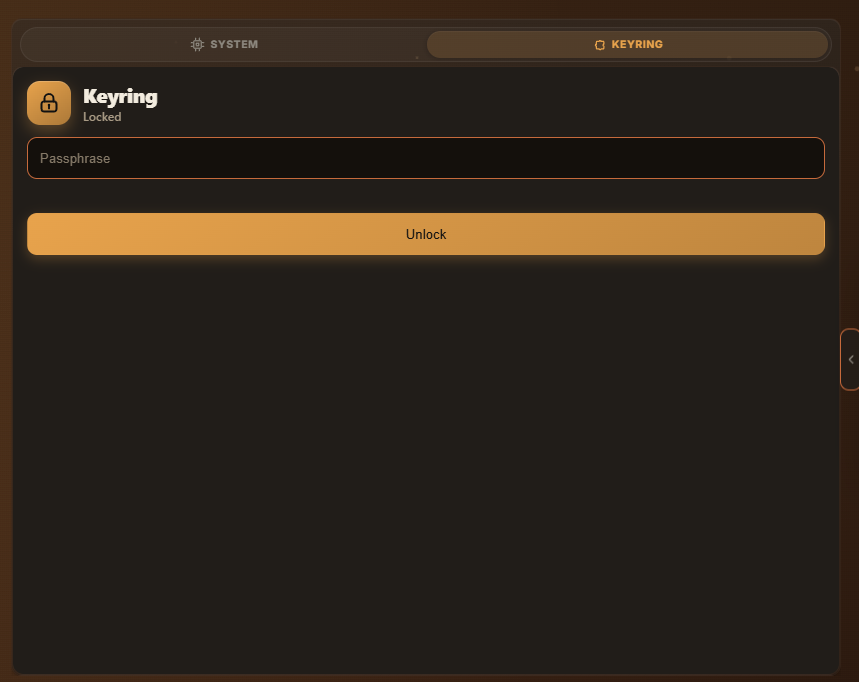
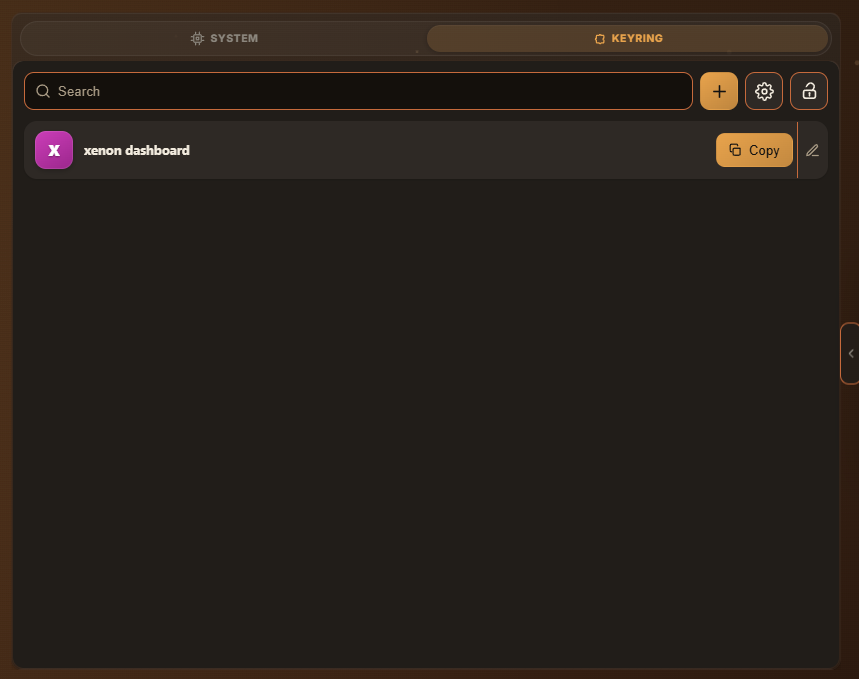
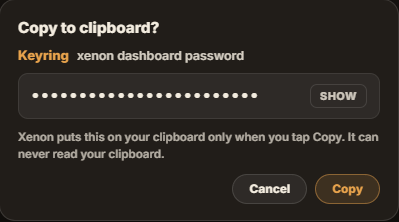
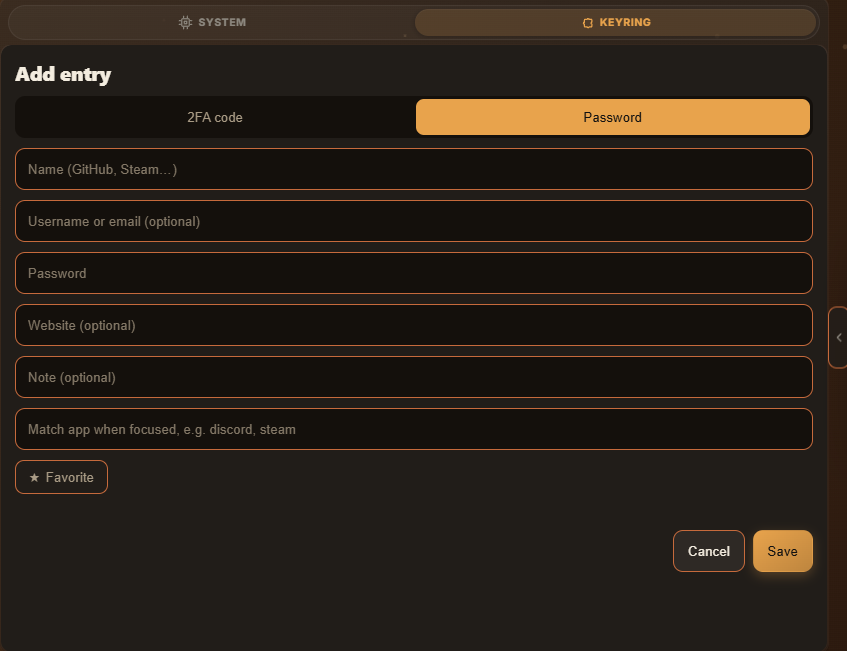
What a widget does
A widget is a tile that lives on your dashboard grid. It runs sandboxed, with no network access unless its manifest asks for named hosts and you approve them at install.
Palette
#1ed760#0c0f10#eef2f0
Tags
This one asks a little more of the machine than most, which is worth knowing before you load it onto a small screen.
Free. Copy the share code, then paste it into Xenon under Settings → Widgets & sharing → Import. Everything stays on your machine.
How to install it
- Open Keyring in the catalog and press Copy code.
- In Xenon, open Settings → Widgets & sharing → Import and paste the code.
- Xenon shows you what the code contains before anything is applied. Confirm, and Keyring is on your dashboard.
- This one needs Xenon 4.7.0 or later. An older install refuses the code rather than importing half of it.
At a glance
- TypeWidget
- CategoryTools
- Made byxenon (supporter)
- Versionv1.0.0
- NeedsXenon 4.7.0 or later
- Runs onWindows, macOS and Linux, on a second monitor, a Xeneon Edge, a tablet or a paired phone
- PriceFree
- Added2026-07-19