FPS overlay with 1% and 0.1% lows
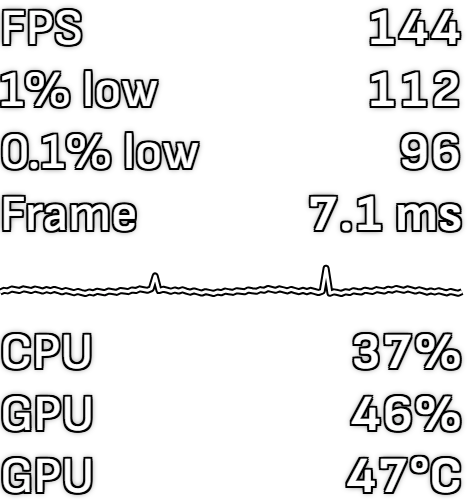
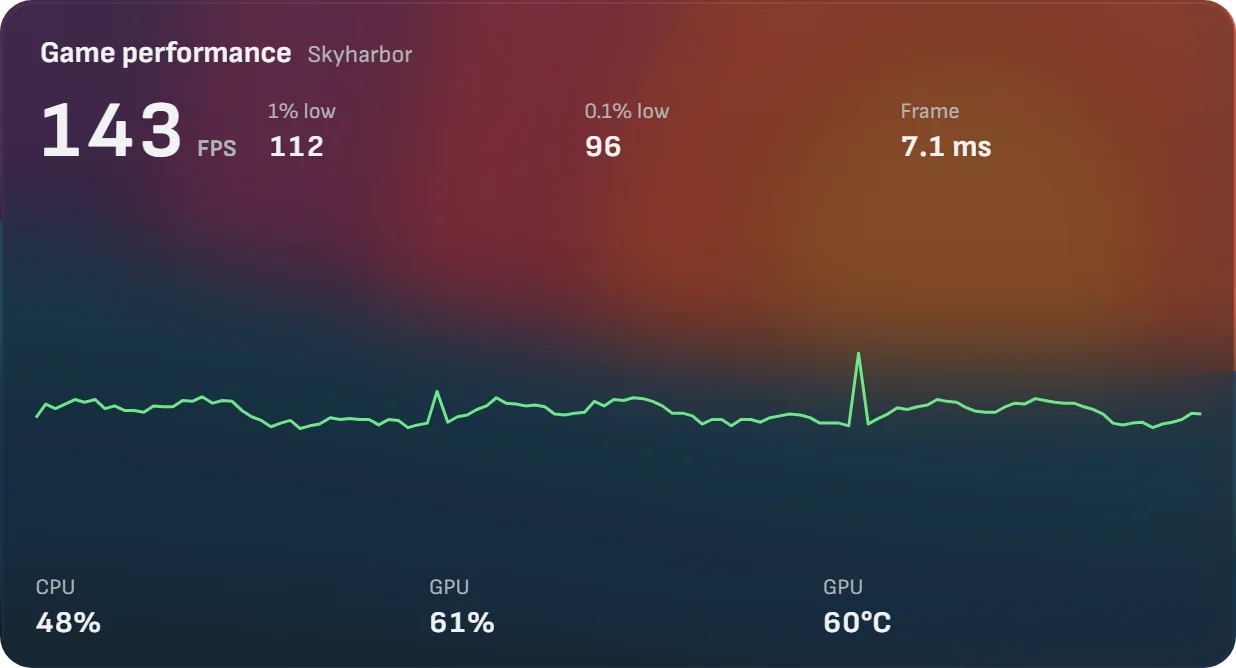
The Game performance tile in Xenon shows the frame rate of the game you are playing, its 1% and 0.1% lows, the frame time and a graph of the latest frames, with CPU and GPU load and the GPU temperature. It sits over the game, on a second screen or on your phone. Free, with no account.
Last updated: 31 October 2026
What 1% and 0.1% lows tell you
The average frame rate hides the moments that feel bad. Xenon also takes the slowest 1% of frames and gives their average as a frame rate: that is the 1% low. The 0.1% low does the same with the slowest frame in a thousand.
In the picture above the game averages 143 FPS, the 1% low is 112 and the 0.1% low is 96. The three numbers are close, so the game feels smooth. When the average is high and the lows are far below it, the game stutters even though the FPS counter looks fine.
The frame time is how long one frame took, in milliseconds: 7.1 ms is about 140 frames a second. In the graph every frame is a point, and a stutter shows up as a spike. The lows appear only once enough frames have been measured, so the first seconds of a game show the average alone.
Over the game, on a second screen or on your phone
In the Xenon app on Windows, ask Bit “show my FPS over the game” and the tile goes over your game. Clicks next to it reach the game, and the tile never takes the focus. Press Ctrl+Shift+F9 to hide the widgets over the game and again to bring them back.
The same tile works on a second monitor, a touchscreen like the CORSAIR Xeneon Edge, or a phone paired with your PC, so nothing has to cover the game at all. It updates four times a second, only while a game runs and the tile is on a screen.
Every part can be switched off in Settings, Performance, Game performance: the 1% low, the 0.1% low, the frame time, the graph and the CPU and GPU line.
Xenon draws its own window and never enters the game’s process. That is why it cannot show over a game in exclusive full screen. The tile tells you when a game runs that way, and switching the game to borderless or windowed full screen in its display settings brings the overlay back.
Why does my game stutter?
Press the Deck key Why does it stutter? or ask Bit the same question. Xenon looks at the frame times of the last seconds, the graphics card and processor load, the busiest core, video and system memory and the temperatures, and gives one cause and one next step.
For example “Video memory full: lower texture quality or resolution”, “Graphics card at full load”, “Capped at 60 FPS”, which is normal with V-Sync or a frame limit, or “Loading stutter” when nothing is at its limit. It uses fixed rules on your PC, with no AI model and nothing sent anywhere. While the game stutters, the tile shows the cause in one line under the graph.
Compare your games and record a benchmark
Xenon remembers every game you play for more than two minutes: average FPS, 1% and 0.1% lows, how long you played, CPU and GPU load and the peak temperatures. Between games the tile shows the last one, for example “12 FPS more than the one before”. Settings, Performance, Games played lists the last ten, each compared with the time before in the same game, so a driver update or a patch shows up on its own.
Ask Bit “did the driver update help?” and it answers from those games. The newest 100 stay on your PC and go into the backup.
For a precise run, the Deck key Benchmark records the time of every frame and saves a CSV file in Documents, Xenon, Benchmark, with PresentMon’s column names. It stops when you press it again, when the game closes or after 30 minutes, and tells you the average FPS and the 1% low.
On Windows, Linux and Mac
| System | Frame rate | Lows and frame time | Benchmark and stutter causes |
|---|---|---|---|
| Windows | Every frame, with PresentMon | Yes | Yes |
| Linux (Beta) | Average, with the game started with MangoHud | No | No |
| macOS (Beta) | No: one app cannot measure the frame rate of another | No | No |
On macOS and Linux the tile still shows CPU and GPU load, and says in one line why the frame rate is missing.
Next to MSI Afterburner and RivaTuner
Afterburner with RivaTuner draws its overlay from inside the game, which is how it can show over exclusive full screen. Xenon stays outside the game, and adds what those tools leave to you: past games compared, a cause when a game stutters, and the same numbers on a second screen or a phone.
Xenon does not overclock, undervolt, set fan curves, limit the frame rate or change driver settings. If you use Afterburner for those, keep it.
Common questions
Does the FPS overlay get me banned by anti-cheat?
Xenon never injects code into a game and never hooks its process. It draws its own window on top and reads frame times from the system with PresentMon, so there is nothing inside the game for anti-cheat to flag.
Does it need an NVIDIA graphics card?
No. On Windows the frame rate comes from PresentMon, which reads frames from the system rather than from the graphics driver, so the tile does not depend on NVIDIA, AMD or Intel software.
Why does the overlay not show over my game?
The game is probably in exclusive full screen, where no other window can show over it. Switch it to borderless or windowed full screen in its display settings. The tile and a one-time message tell you when this happens.
Is the FPS overlay free?
Yes. The Game performance tile, the games played, the benchmark and the stutter causes are part of the free app, with no account. Supporters get monthly catalog drops, not extra features.
Download Xenon
Free, with no account. Download Xenon for Windows, or pick your system on the download page. To put widgets, recordings and Instant Replay on the same screen, read Xenon on one screen.