Xenon on one screen
Xenon puts its widgets, a game performance overlay, screenshots, recordings and Instant Replay on the screen you already have. No second monitor, no account, nothing injected into your games.
Last updated: 30 October 2026
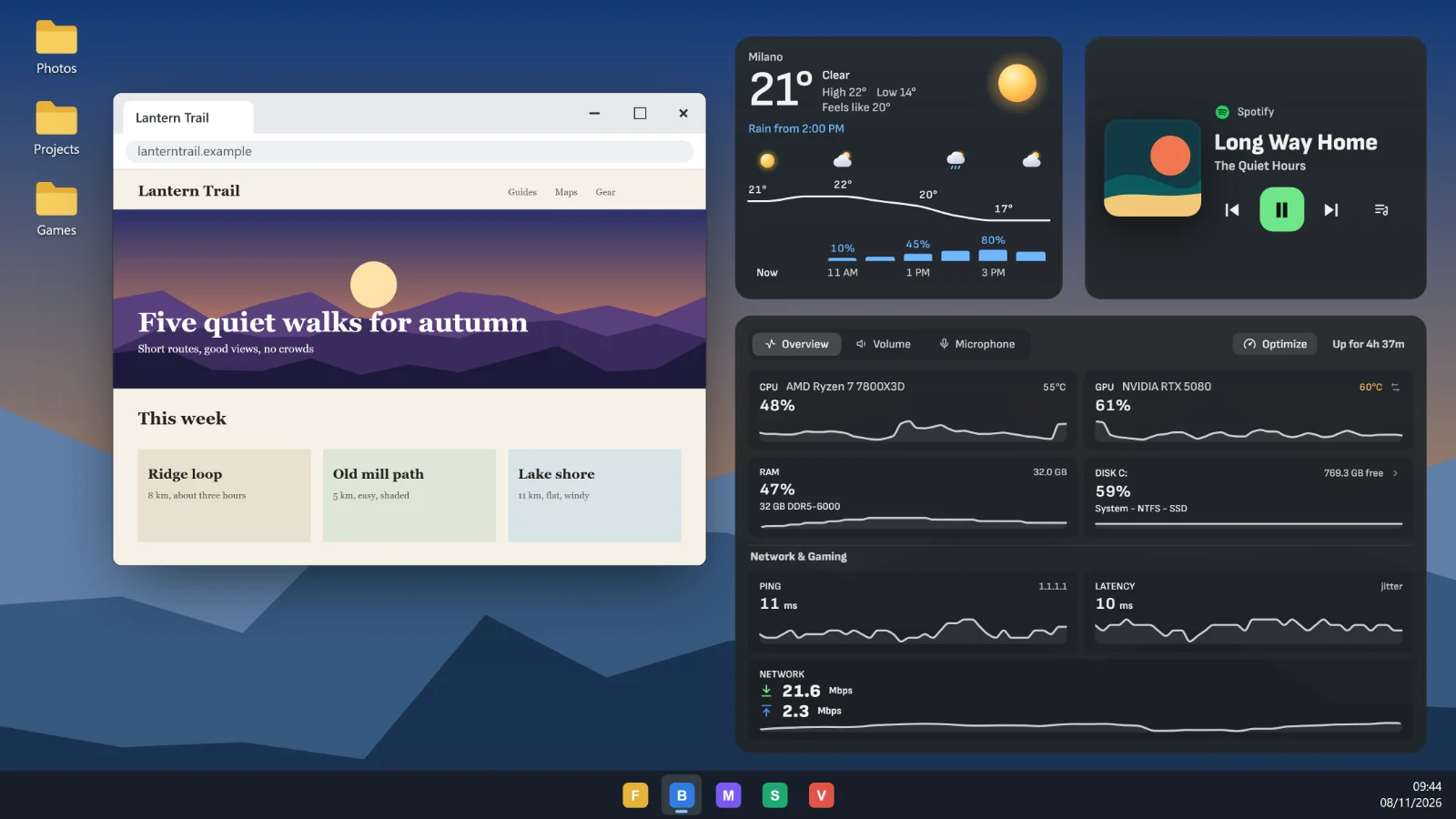
All of this lives in the Xenon app: on Windows, and on macOS and Linux, which are in beta. A dashboard on a second screen or a phone is still there if you want it, and it can control everything on this page.
Widgets on your screen
Ask Bit “put the weather on the desktop, top right” and the widget appears there. A widget can sit on the desktop, under your windows, and come up when you show the desktop; over everything, on top of your apps and of games in a borderless window; or next to an app, following its window and hiding when you minimize it.
Clicks next to a widget reach whatever is underneath, and clicking a widget does not take the focus from the window you were using. Every tile of the dashboard and every Store widget can go on the screen.
To arrange them by hand, ask Bit “let me move my widgets” or press the Deck key Edit the widgets on screen: drag to move, tap a widget for its choices. The Xenon menu has a map of your screens that does the same, even from one monitor to another. Widgets can live on pages, such as Work and Games: a page marked When I play shows by itself while a game runs, and a page can follow a virtual desktop.
A widget can also follow a rule. In the Xenon menu, open Adjust on a widget and choose When it shows: only during a game, music, a call or a live on OBS, only with one app in front, between two times, and more. A page of widgets can do the same: it comes forward when the situation starts and gives back the page you were on when it ends.
A widget can also have a key combination of its own. In the Xenon menu, open Adjust on a widget and set one under Keys: press it to show or hide the widget, or hold it to see the widget only while you hold it. A widget from the catalog can also put its functions on keys. Every key is listed in Shortcuts and macros.
If you do not want the dashboard at all, choose Widgets only in Settings, General, How you use Xenon. The app then keeps no dashboard window, not even a hidden one, and uses less memory. Alerts such as a saved clip or a timer that ends appear at the top right of your screen, and Bit still answers “Hey Bit”.
The Xenon menu
Press Alt+Shift+X in any app, games in a borderless window included, and one menu opens over your screen: screenshot, area, record and gallery; the widgets, where each one sits, and their pages; the capture options; every keyboard shortcut in one place, with the ones another app already uses named; the look; and how you use Xenon.
It also opens from the tray, from a Deck key, or by asking Bit. With a controller, hold the two small buttons in the middle together for a moment: View and Menu on an Xbox-style controller, Create and Options on a PlayStation one. The D-pad moves, A presses, B closes.
Game performance over the game
The Game performance tile shows the frame rate of the game you are playing, its 1% and 0.1% lows, the frame time and a line of the latest frames where a stutter shows up as a spike, with CPU and GPU load underneath. Ask Bit “show my FPS over the game” to put it over your game. On Windows, Ctrl+Shift+F9 hides the widgets over the game and brings them back.
Xenon remembers every game you play for more than two minutes, so you can compare one evening with the next, and Bit answers “why does my game stutter?” from what Xenon already measures. A Deck key saves every frame time of a run as a CSV file.
On Windows Xenon measures every frame. On Linux the frame rate needs the game started with MangoHud. On macOS one app cannot measure the frame rate of another, and the tile says so.
More on the tile, the lows and the benchmark: FPS overlay with 1% and 0.1% lows.
Screenshots, recordings and Instant Replay
Take a screenshot of the screen, of the window in front or of an area you drag over a frozen screen. On an HDR screen the picture keeps the colours you see. Record the screen or one window as an MP4 with its sound, and add your microphone only if you choose it.
Instant Replay keeps the last minutes of your screen, from 15 seconds to 60 minutes, on the disk and not in memory. Press Ctrl+Shift+F10 on Windows, tap a Deck key or say “save the last 30 seconds” and the clip is saved in about a second. It is off until you turn it on in Settings, Capture, because while it is on it records all the time.
Mark a moment while Instant Replay runs and Xenon saves a clip around it. The gallery groups your captures by day and game, trims a video without encoding it again, writes a transcript on this PC, makes a vertical 9:16 copy or a lighter one for a chat, and sends a capture to your paired phone.
On Windows and macOS it uses the system’s own capture and video encoders, so it works with any graphics card. Everything stays on your PC: nothing is uploaded.
Every capture tool, and what works on a Mac and on Linux: screen recorder and Instant Replay.
Your phone as the second screen
With one monitor, the second screen can be the phone in your pocket. Pair it with Xenon and it shows your dashboard over your own Wi-Fi: the Game performance tile with your FPS, so nothing sits over the game, and Deck keys that save the replay or take a screenshot on the PC. How to pair a phone.
On a Mac and on Linux
Widgets on the screen, Widgets only, the Xenon menu, screenshots and recordings work on macOS and Linux too, as a beta: they have not been tried on a real Mac or a real Linux PC yet, so tell us what does not work. What a system cannot do does not appear, and Settings says why.
On Linux what you get depends on your desktop and on the tools installed. Widgets need an X11 session with a compositor, or KDE Plasma, Sway or Hyprland with the gtk-layer-shell library; GNOME with Wayland does not let an app put its windows under or over the others. In SteamOS Game Mode nothing can open over the game, so there use the phone.
What Xenon does not do
Xenon draws only its own windows and never enters the game’s process. So it cannot draw over a game in exclusive full screen: the tile says so, and the game’s display settings can switch it to borderless. It does not overclock, change voltages or fans, or change driver settings.
Common questions
Do I need a second monitor to use Xenon?
No. In the Xenon app widgets can go on your desktop or over your apps, and the Xenon menu opens over any app with Alt+Shift+X. A second screen or a paired phone is optional.
Does the overlay go inside the game?
No. Xenon draws its own windows on top of the game and reads frame times with PresentMon on Windows. It never loads code into the game’s process.
Does Instant Replay need an NVIDIA or AMD card?
No. On Windows and macOS it uses the system’s own capture and video encoders, so it works with any graphics card. It is off by default, and the kept minutes wait on the disk, not in memory.
Do these features cost anything?
No. Widgets on the screen, the overlay, screenshots, recordings, Instant Replay and the gallery are free, with no account.
Download Xenon
Free, with no account. Download Xenon for Windows, or pick your system on the download page.